InfoBubble Handbook
News reader and AI filter for macOS 26 and later. Each page below explains one thing in a few steps.
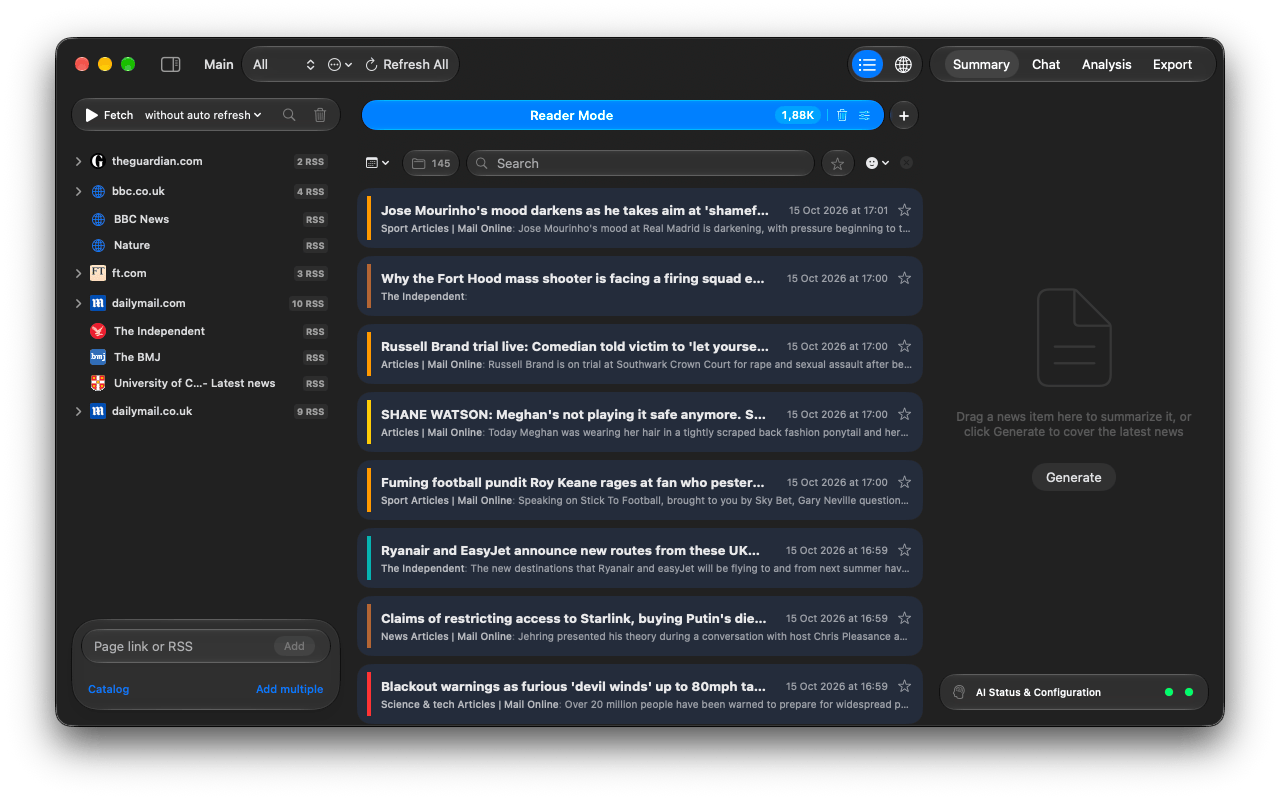
New here? Start with Getting started.
Start here
Getting startedCreate a project, add a few sources and read your first news in five minutes.
Projects, workspaces and tabsWhat a project file holds, how workspaces separate topics, and Reader Mode vs. AI Search tabs.
Sources
Using the Sources CatalogBrowse thousands of news sites and podcasts by country, language and type and add them in one click.
Adding your own sourcesAdd any site or feed by address, paste many links at once, organise folders and fix failing sources.
Reading
AI Search criteriaDescribe what you want in plain words; the AI reads every article and keeps only the matches.
Reading and filtering newsThe filter bar, search syntax, story folders, the article window, translation and shortcuts.
Analysis, Fear Meter and the GlobeSee the mood of the news, top topics and places, publisher tone, and news on a map.
AI and processing
Choosing an AIApple Intelligence, a local model in LM Studio or a cloud service: what to pick and how to connect it.
Local AI with LM StudioRun a free, private model on your Mac and connect InfoBubble to it.
Processing modesWhat the AI, Machine Learning and Heuristics options do, and which to choose.
Summaries and the news chatGet a digest of the latest news with sources, or ask questions about your feed.
More
Exporting newsSend matching news to an RSS file, a CSV, your own API or a Telegram channel.
Free and full version, privacyWhat the free version includes, how to unlock everything, and what leaves your Mac.
Questions or problems? Open an issue in the
GitHub repository.